 Shoopy
 Understanding the Shoopy home dashboard
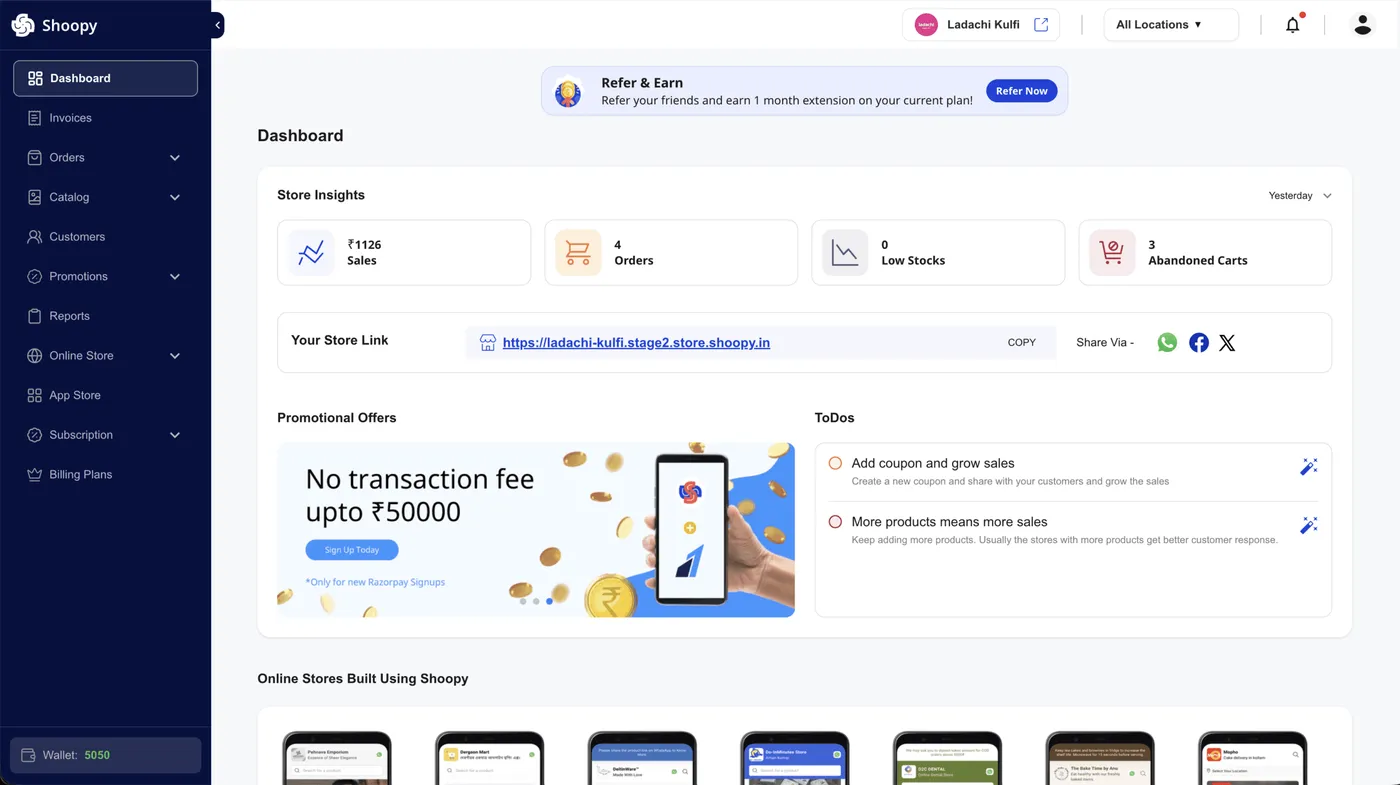
A tour of the home dashboard — the four insight cards (Sales, Orders, Low Stocks, Abandoned Carts), the date-range selector, and the setup to-do list.
The home dashboard is your daily snapshot: four insight cards, a setup to-do list, and example stores, so you can see how your store is doing without digging into reports. Each insight card refreshes when you switch the date range, which makes it easy to spot a good day or a slow week in seconds. For a live example of a Shoopy-powered storefront, visit www.aziri.in. For the order and stock tools these cards summarise, see orders and inventory.
Before you begin
- Sign in to your Shoopy admin. For details, see Logging in with OTP.
- Your role must allow you to view insights. Owners, admins, and location admins all see the cards.
- Some cards are hidden for certain roles — a Sales Rep doesn’t see Abandoned Carts.
- New term in this article? Check the Glossary of Shoopy terms.
How to open the home dashboard
Open the Shoopy admin at web.shoopy.ai or at your custom domain, then click Dashboard in the sidebar. The home dashboard loads with the four insight cards on top.
The four insight cards
The four cards sit at the top of the dashboard. Each card has its own label, value, and icon, and all four react to the date-range dropdown.

Sales
Sales shows revenue for the selected date range. The number uses your store’s currency symbol — Indian stores see ₹, US stores see $. This is money in, not an orders count.
Orders
Orders shows the count of new orders in the selected range. It counts both storefront and staff-created orders, so the Orders number is never smaller than the Sales card’s order count.
Low Stocks
Low Stocks shows how many SKUs are below your stock threshold — a heads-up to restock. This card doesn’t react to the date range; it always shows the current stock state.
Abandoned Carts
Abandoned Carts shows the count of carts that never checked out. It reacts to the date range, but it is gated by permission — a Sales Rep role doesn’t see this card at all. For more on the term itself, see the Glossary of Shoopy terms.
The date-range dropdown
Each insight card reacts to the active date range. A dropdown at the top of the card strip lets you switch the window, and Shoopy remembers your last choice within the same browser session — the pick is reset to Today on sign-in. The six options are:
- Today
- Yesterday
- This Week
- Last Week
- This Month
- Last Month
For a deeper look at each range, see Shoopy dashboard date ranges.
The setup to-do list
Below the insight cards, Shoopy shows a setup to-do list highlighting next steps for a new store — tasks like “Add Products”, “Setup Logo”, or “Add Coupon”. Each task has a button that takes you to the right module, and the list shrinks as you tick items off. Shoopy hides the to-do list on custom-domain admin panels for a cleaner look.
Promotional banners and example stores
Next to the to-do list, you may see a banner carousel — it can showcase a seasonal campaign or a new Shoopy feature. Further down the page, Shoopy shows a carousel of example stores on the platform, useful for design inspiration. Both blocks are hidden on custom-domain admins.
What the dashboard shows on an empty store
A brand-new store has no sales or orders yet, so all four insight cards show 0. The to-do list is long on day one — the dashboard doubles as a setup checklist until you complete the basics.
What the dashboard shows by role
Shoopy hides or shows dashboard blocks based on your staff role, keeping the view relevant for each teammate. The table below sums up the gating:
| Block | Who sees it |
|---|---|
| Insight cards (Sales, Orders, Low Stocks) | Owner, Admin, Location Admin, Marketing Manager, Sales Rep |
| Abandoned Carts card | Owner, Admin, Billing Manager, Location Admin |
| Setup to-do list | Owner, Admin, Billing Manager, Location Admin |
| Banner carousel & example stores | Hidden on custom-domain admins |
For a full map of roles, see A tour of the Shoopy admin panel.
Tips
- Pick a range that matches your cadence. A daily check fits “Today”; a weekly review fits “This Week”.
- Act on Low Stocks first. Low stock is the only card that can lose you sales in the next hour, so restock or adjust thresholds before checking Sales.
- Use the to-do list on day one. The checklist guides you through the store-setup flow end to end.
Troubleshooting
Insight cards show “0” for a busy day
Check the date range dropdown. Often the filter is still on “Today” at 6 AM, before any orders have come in. Switch to “Yesterday” or “Last Week” to see past activity.
I can’t see the Abandoned Carts card
Your staff role is missing the Abandoned Carts permission. Ask the store owner to grant you the right role — the owner can review roles under Online Store → Users & Roles.
The dashboard feels empty on my custom domain
Custom-domain admins hide the banner carousel and example stores for a cleaner look — this is by design. The four insight cards and the setup to-do list still appear.