 Shoopy
 Choosing your Shoopy plan
Compare Shoopy's Basic, Professional, and Business plans side-by-side to pick the one that fits your store's size, team, and feature needs.
Shoopy offers three plans — Basic, Professional, and Business — so stores of different sizes can pay only for what they need. This article walks through what each plan includes, where to compare and upgrade plans from your dashboard, and how plan-gated features show up in the product. A live Shoopy-powered storefront like www.ladachikulfi.com runs on one of these plans.
Prices and renewal terms shown in the screenshots are region-specific; always check the Billing Plans page inside your admin for the current price in your currency.
Before you begin
- You already have a Shoopy account. If not, start with Create your Shoopy account.
- You don’t commit to a plan at signup — you can upgrade whenever a paid feature becomes relevant.
- Plans are billed annually, and a 14-day free trial is available so you can evaluate before committing.
Plans at a glance
The public pricing page lists the plans side-by-side with per-year and per-month equivalents and the headline features of each tier.
Here’s the short version of what separates the tiers:
| Plan | Who it’s for | Product limit | Staff seats |
|---|---|---|---|
| Basic | Stores wanting their own domain, advanced shipping, and business reports | Up to 500 products | — |
| Professional | Growing stores that need a mobile app, premium themes, and a small team | Up to 5,000 products | Up to 5 |
| Business | Stores at scale that need many staff seats, a free domain, and app publishing | Up to 1,00,000 products | Up to 25 |
What each plan includes
Basic – Up to 500 products – Custom domain mapping – Shoopy branding removed (except SMS) – Detailed business reports – Advanced shipping rules – Extra product attribute fields, product video, barcode support – Returns, labels, and wallet settings – Estimates and purchase orders
Professional — everything in Basic, plus: – Up to 5,000 products – Up to 5 staff seats – Play Store application file for your store – Premium classic themes – Minimum and maximum quantity rules per product – Manage staff with granular permissions – GST sales report and daily sales summary report – Payment mode configuration – Premium support – No Shoopy branding in SMS
Business — everything in Professional, plus:
– Up to 25 staff seats
– Free .in domain for the first year
– App publishing service
– Multiple store locations
– Dedicated support manager
Where to find plans in your dashboard
Once you’re signed in, open Billing Plans from the sidebar. You’ll see the tiers that are relevant to upgrade to, with “Key Highlights” for each, and an Upgrade button per plan. The Compare all features link at the bottom opens the full feature-by-feature comparison.
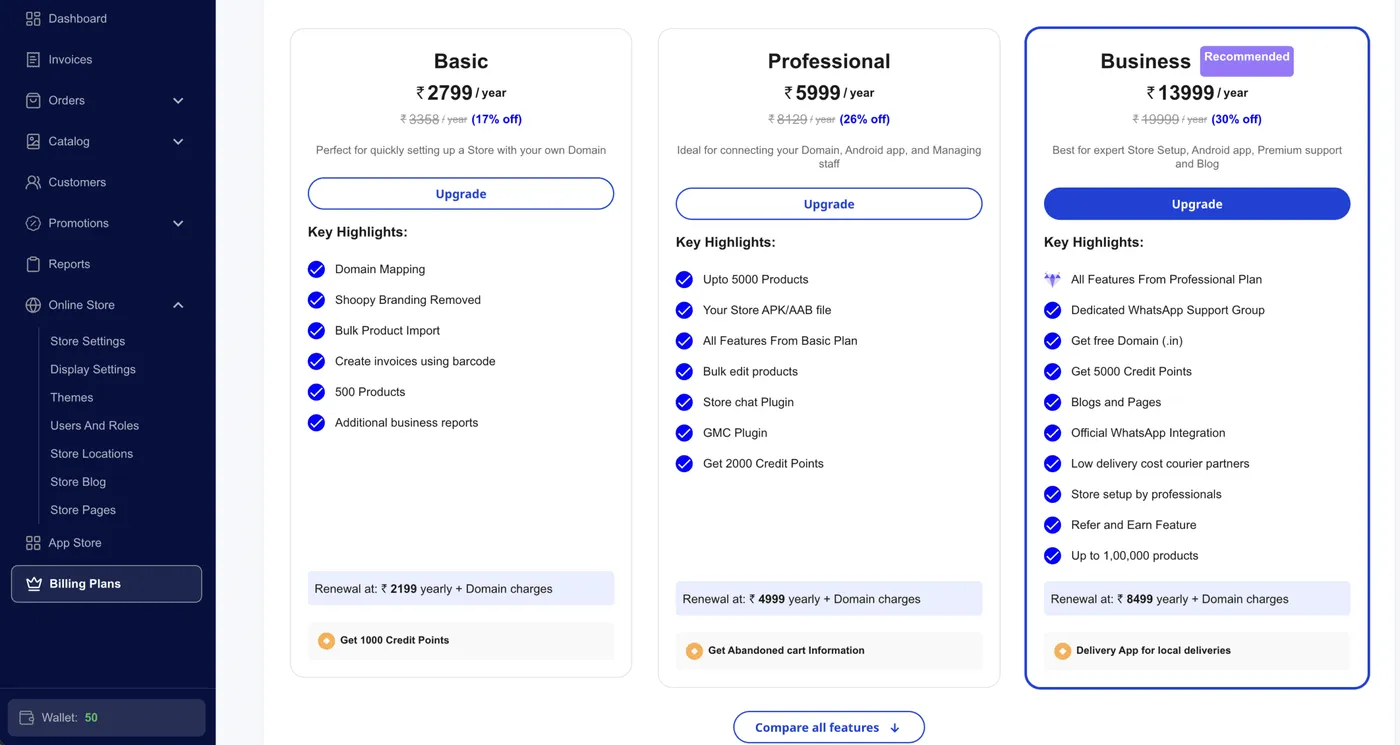
A few things to notice on this page:
- The plan marked Recommended is Shoopy’s general suggestion for stores at your current activity level — treat it as a hint, not a requirement.
- Each plan’s card shows annual pricing, the effective monthly equivalent, and the renewal price for the following year.
- Credit Points listed on each card can offset part of the upgrade cost — they accumulate from referrals and promotions.
- Your current plan doesn’t appear as an upgrade option. If you’re already on Professional, only Business will be listed here.
What’s gated by plan
Shoopy gates certain features behind specific plans. When you try to use a feature your current plan doesn’t include, an upgrade prompt appears. The modal names the specific feature you tried to use, lists what the target plan includes, and links to View Plans so you can upgrade directly. How the tiers split up commonly gated features:
- Every plan includes: custom domain mapping, advanced shipping rules, detailed reports, product video, wallet, estimates, purchase orders, barcode support.
- Professional unlocks: staff management, Play Store app file, premium themes, min/max quantity rules, GST and daily sales reports.
- Business unlocks: multiple store locations, up to 25 staff seats, free domain, and app publishing.
A few fields and settings only appear in the UI when your plan supports them. If you don’t see an option another merchant mentions, check whether it requires a higher plan.
Upgrading and downgrading
- Upgrade: Click Upgrade on the target plan’s card, then complete payment. The new plan activates immediately; your feature set updates the next time the app loads.
- Downgrade: If your next renewal should be on a lower plan, contact support before the renewal date. Downgrading may hide features you were using (extra staff seats, extra products beyond the lower tier’s limit, etc.) — plan the transition so no data is lost.
- Free trial: You can try a plan free for 14 days. If you don’t convert, any feature that plan includes becomes read-only or hidden at the end of the trial.
Tips
- There’s no benefit to upgrading tiers before you’ve set up. Add products, configure shipping, and place a test order first — the setup steps work the same across all plans.
- Upgrade when a specific feature blocks you. The clearest signal to upgrade is the upgrade prompt itself. If you never hit one, your current plan is probably fine.
- Annual billing is meaningfully cheaper than the implied monthly rate. If you’re confident about Shoopy, annual pays back quickly.
Troubleshooting
I upgraded, but a premium feature still shows as locked
Reload the admin dashboard (or log out and back in). The upgrade takes effect on the next app load, and some cached screens need a refresh.
I can’t see the plan I want on Billing Plans
Your current plan is hidden from the upgrade list. If you’re looking for a lower plan (downgrade), contact support — downgrades aren’t self-service because they can disable data you’re currently using.
The prices I see don’t match what someone else reports
Prices are region-specific — each region has its own pricing page. Always trust the price shown on the Billing Plans page inside your own admin.